


DeepSeek Harness custom provider: connect with an Evrona API key
Evrona is an AI model gateway with one API key and a prepaid balance. DeepSeek Harness connects to it as a custom provider through the Custom model API tab: the gateway speaks the OpenAI Chat Completions protocol, so you need no proxy and no plugin.
The gateway is reachable from Russia without a VPN. You top up the balance in rubles with a top-up code, no foreign card required, and each request is charged by the tokens it actually used — every charge shows up in your dashboard history.
You need no DeepSeek account: with an Evrona key dsh works with any chat model in the catalog. Its Model ID goes into the provider settings.
DeepSeek Harness (dsh) is DeepSeek's official coding agent, installed from npm as @deepseek-ai/dsh. Its main interface is a local Web UI that the dsh web command opens. It connects to Evrona as a custom provider over the OpenAI Chat Completions protocol: the Evrona address with /v1 and your key.
Connection steps
Install Node.js 24 or newer and dsh, then start dsh web — the commands are in the terminal snippet. dsh prints a local address with a token to the console — open it in your browser.
Create a key in the dashboard under /console/keys: the key is shown only once, so save it right away. Top up your balance — requests are charged to it.
On first launch dsh shows "Preview Notice" — click "Continue". Next comes the "Get started" window with "Add API Key" and "Sign in": both lead to official DeepSeek, so do not enter the Evrona key there. Close the window, or, if the "Add an API key to get started" window has opened, click "Configure later" — that field is for an official DeepSeek key, and an Evrona key does not work there.
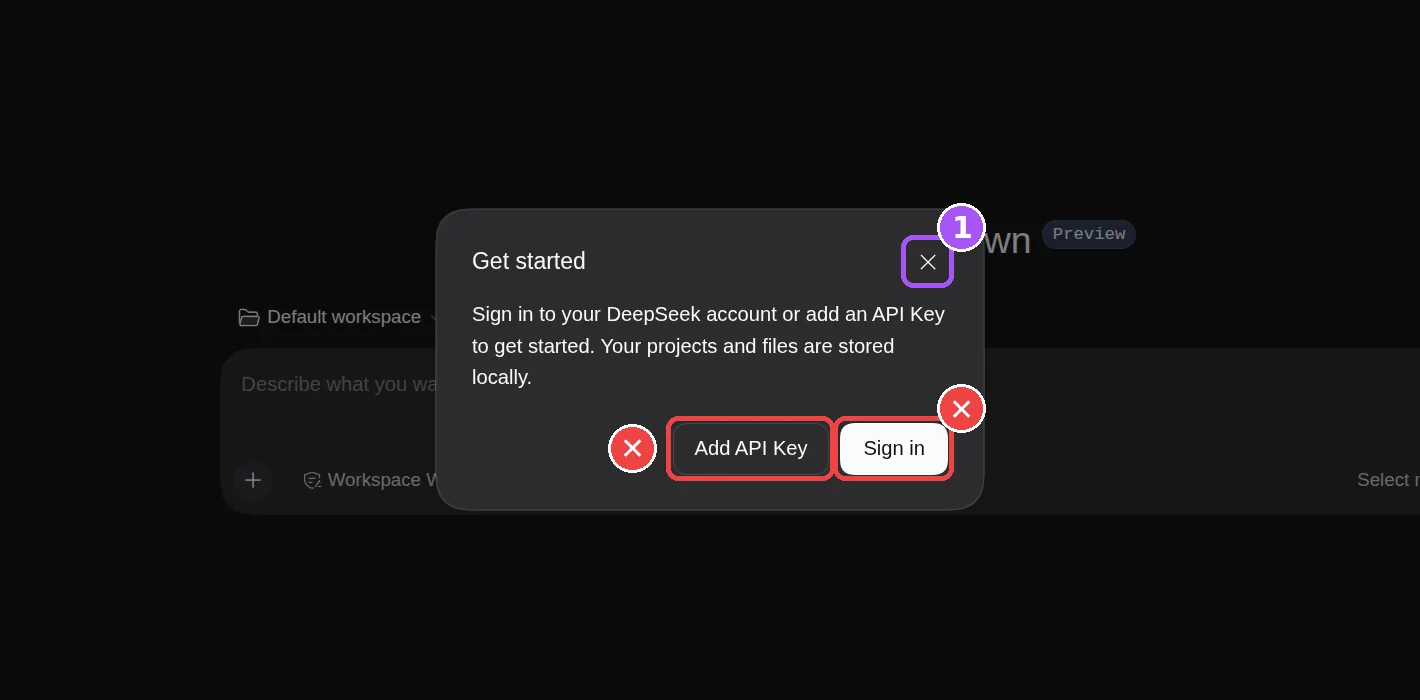
1 — close the window with Close. Add API Key and Sign in (✕) lead to official DeepSeek: do not enter your Evrona key there. Open the More menu at the bottom of the sidebar → Settings → Models. Leave the DeepSeek card at the top alone and do not enter your key there. Click "Add model provider" and switch to the "Custom model API" tab — not "Third-party model provider", which is open by default.
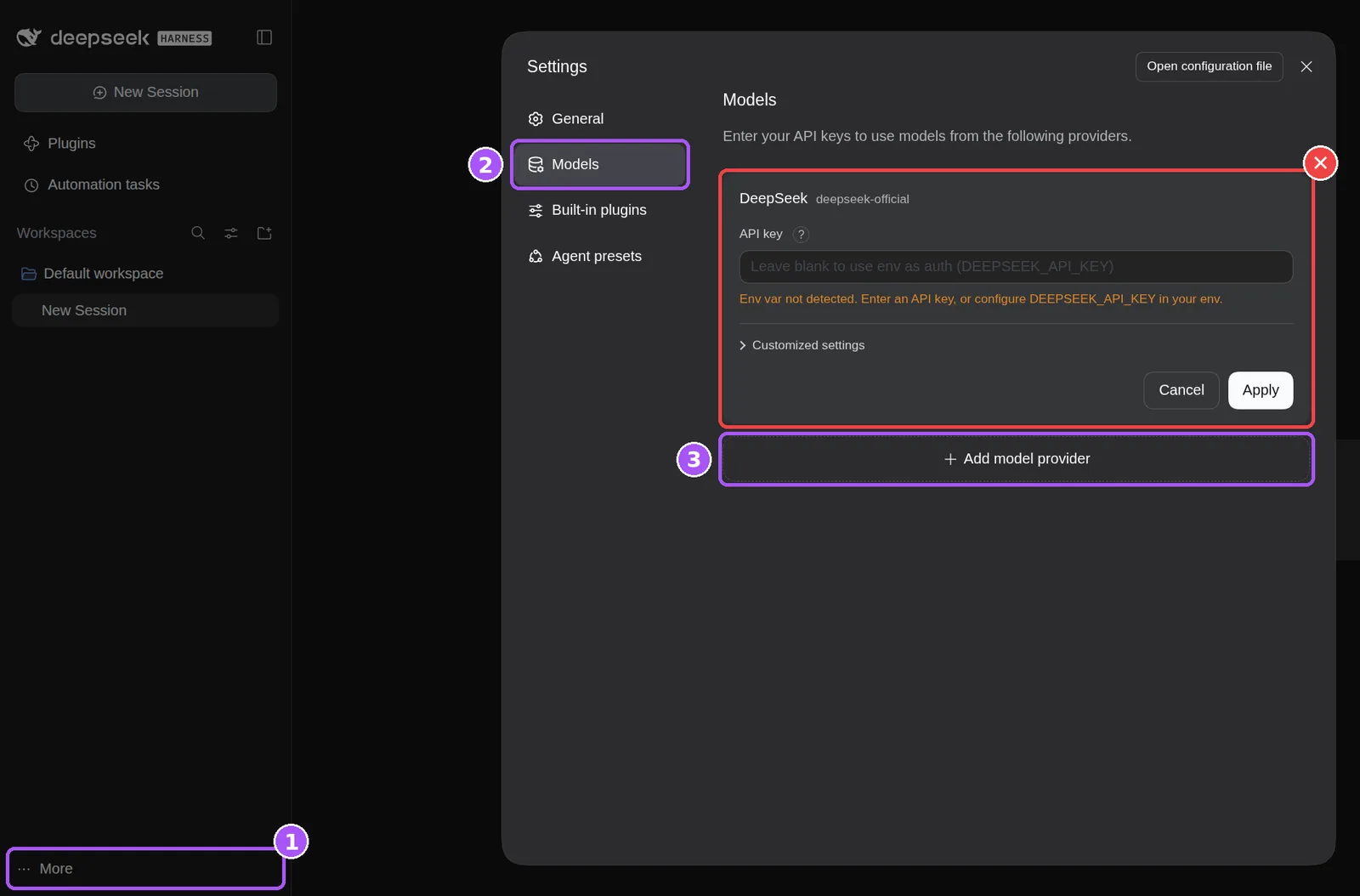
1 — the More menu, 2 — Models, 3 — Add model provider. Leave the DeepSeek card (✕) empty. Fill in the fields from the Custom model API snippet: Provider ID — evrona, Display name, Base URL ending in /v1, API protocol — OpenAI Chat Completions, API key — your Evrona key. Add a model with "Add model": paste the exact model name into the Model ID field, for example deepseek/deepseek-v4.1-flash — you can copy it with the "Copy" button in the "Models for DeepSeek Harness" block below. Then click "Create provider". "Fetch available models" (on a saved provider, via Edit) pulls in the whole catalog with every model ticked — untick the extra ones and keep the chat models. Without the Web UI, for dsh --profile headless, the provider goes into ~/.dsh/cordis.patch.yml and the key into ~/.dsh/.env (chmod 600 on macOS and Linux; on Windows the folder is %USERPROFILE%\.dsh); check it with the check snippet.
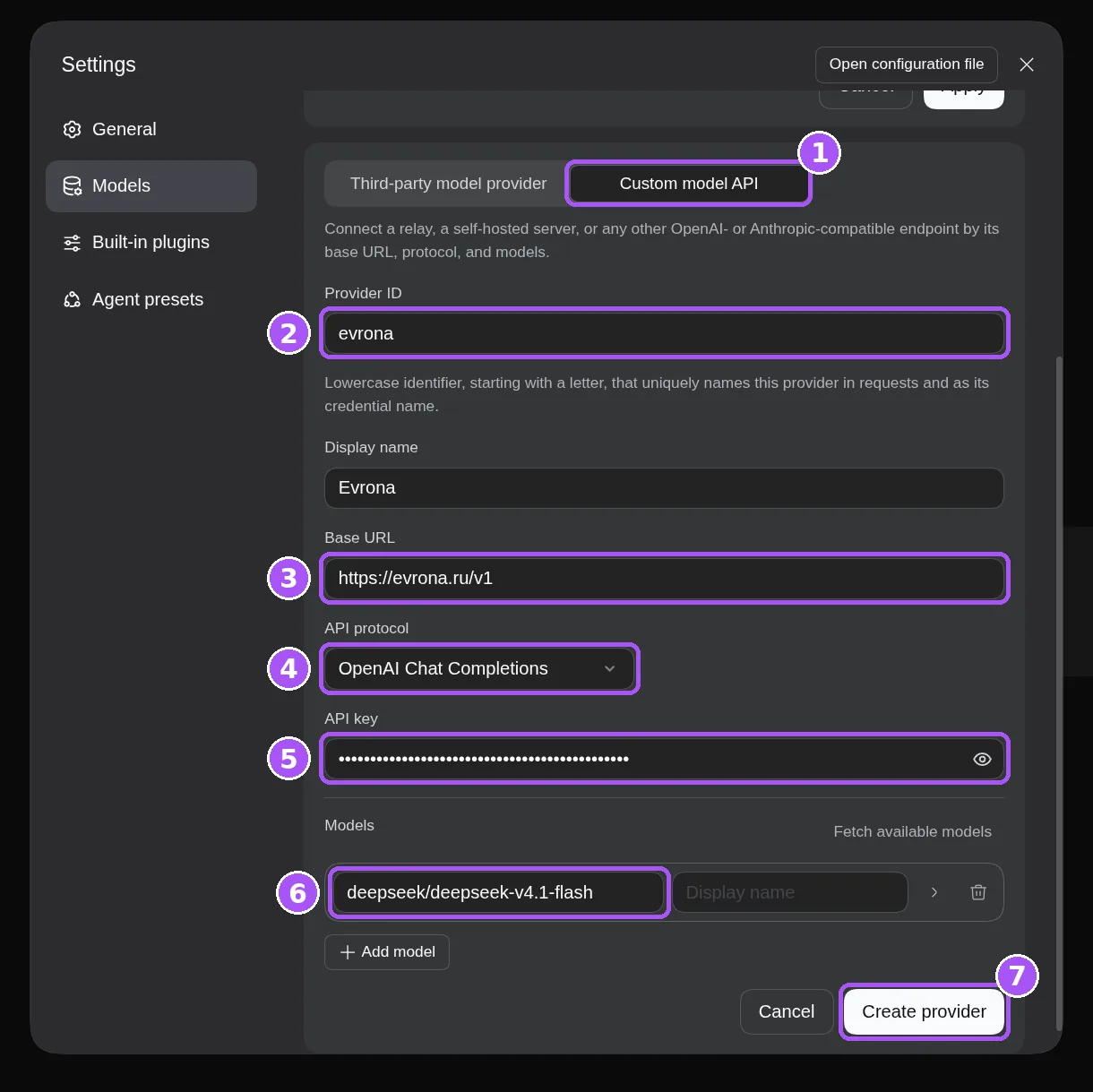
1 — Custom model API tab; 2 — Provider ID evrona; 3 — Base URL ending in /v1; 4 — OpenAI Chat Completions; 5 — your Evrona key; 6 — the model name (Model ID), copy it from the models block below; 7 — Create provider. 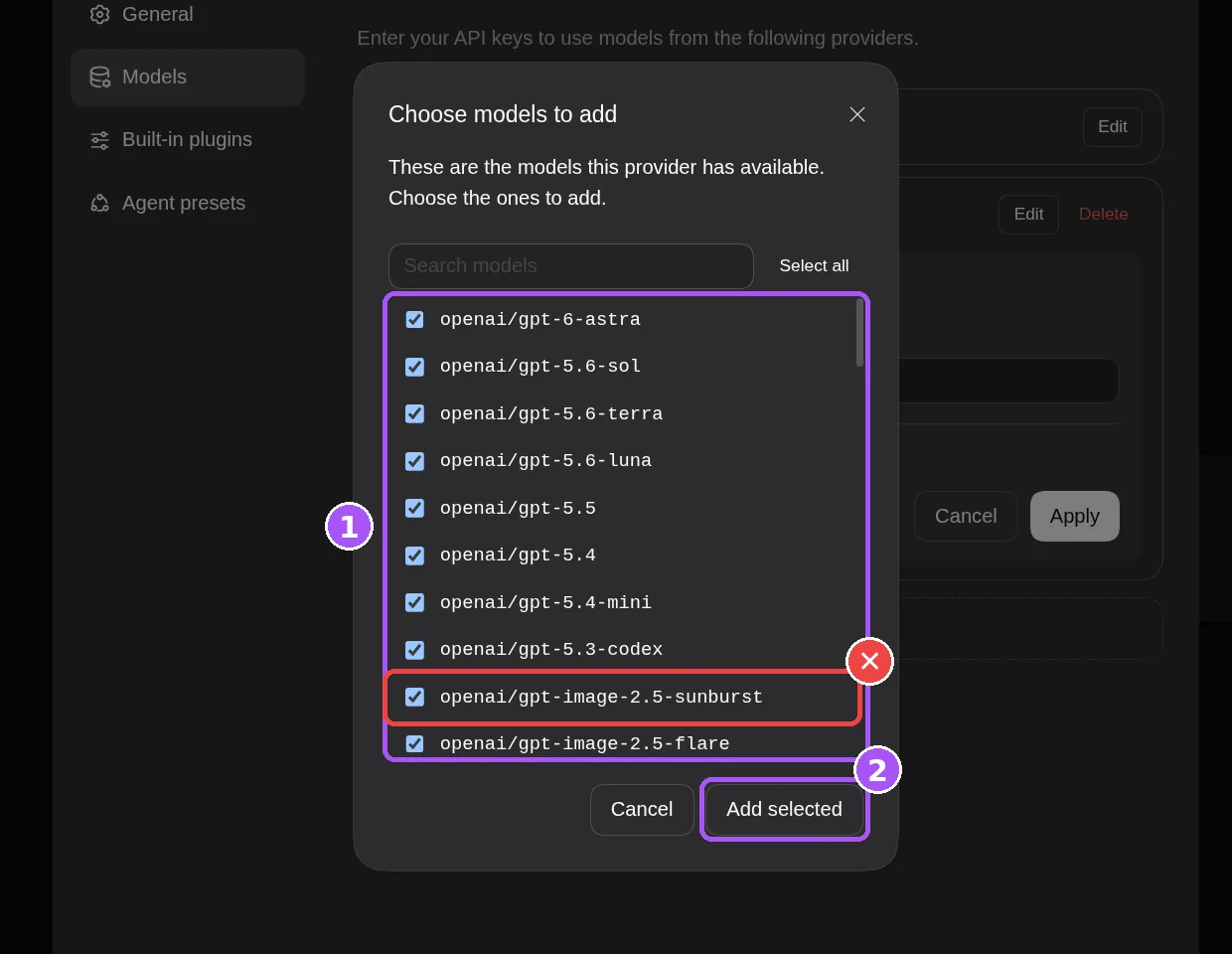
Fetch available models ticks the whole catalog (1). Untick image and video models (✕) and click Add selected (2). Start a new session, pick a model from the Evrona group in "Select model" and send a request.
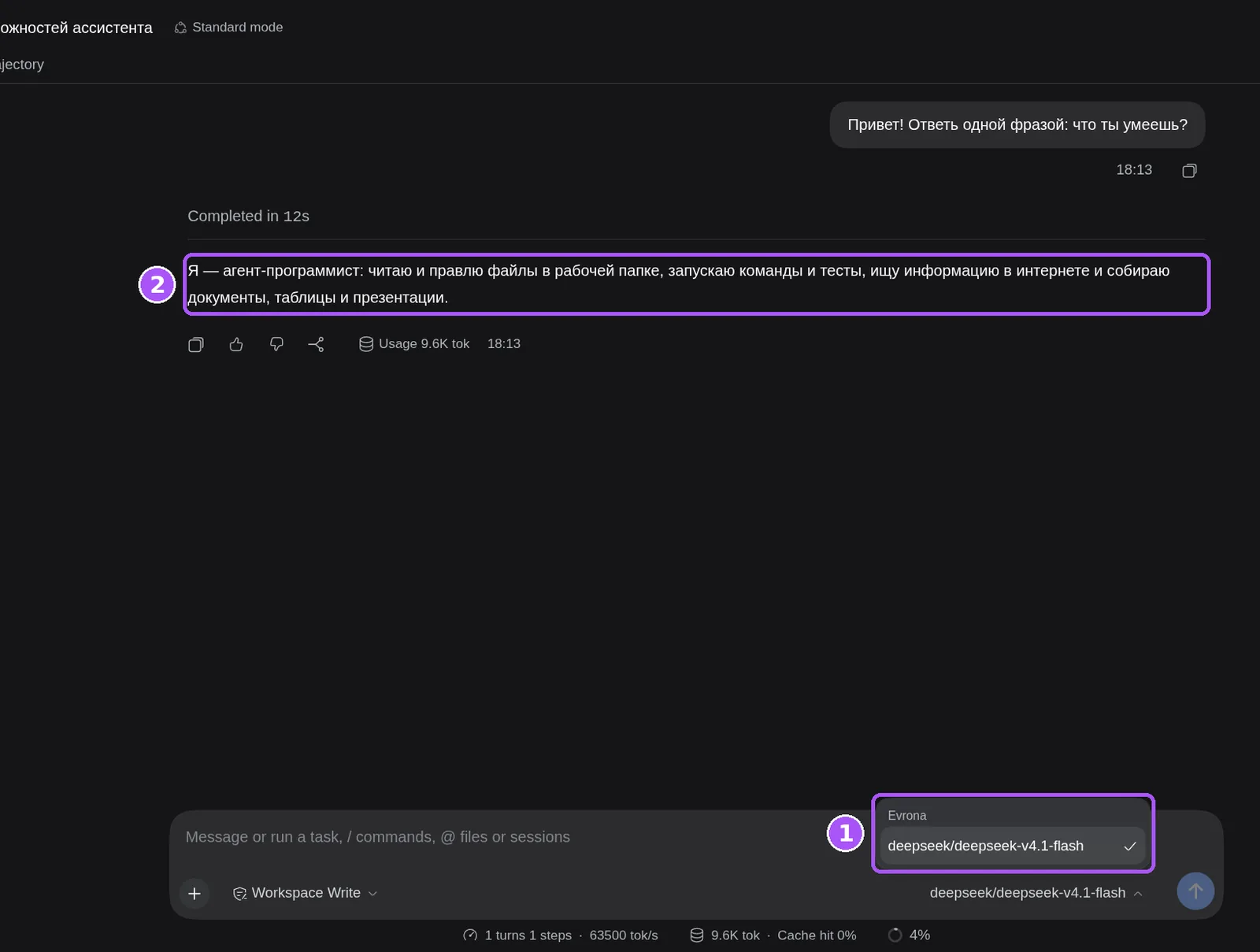
1 — a model from the Evrona group in Select model; 2 — the answer came through Evrona.
# Node.js 24+
npm install -g @deepseek-ai/dsh@latest
dsh web

# or without a global install
npx @deepseek-ai/dsh webdsh is still in preview, and its settings format changes from version to version. This guide was checked on dsh 0.2.1-rc.2. Evrona does not show the model's reasoning in the dsh interface — only the answer arrives. For details, see the official dsh documentation.
Function calling is supported, so agentic modes work. Strict JSON mode (response_format) and the retired functions format are turned down with an unsupported_parameter error — no parameter is lost in silence. Image input is taken by models marked "Understands images" in the catalog: a content part of type image_url with a data:image/png;base64,… URL (PNG, JPEG or WebP, up to 5 MB each, up to 50 per request). Remote URLs are not fetched, and a model without that mark returns unsupported_capability — both errors name the reason outright.
Models for DeepSeek Harness
Every model has an exact name, for example deepseek/deepseek-v4.1-flash — in the settings it is called the Model ID. Click "Copy" on a card and paste it into the Model ID field on the Custom model API tab.
- DeepSeek V4.1 Flashinput $0.03 · output $0.15 per 1Mdeepseek/deepseek-v4.1-flash
- DeepSeek V4 Proinput $0.38 · output $0.84 per 1Mdeepseek/deepseek-v4-pro
- DeepSeek V4 Pro 0813input $0.21 · output $0.78 per 1Mdeepseek/deepseek-v4-pro-0813
- DeepSeek V4 Flashinput $0.03 · output $0.07 per 1Mdeepseek/deepseek-v4-flash
- GPT-6 Astrainput $0.67 · output $2.22 per 1Mopenai/gpt-6-astra
- GPT-5.6 Solinput $0.67 · output $3.94 per 1Mopenai/gpt-5.6-sol
DeepSeek Harness FAQ and common errors
Does DeepSeek Harness work through Evrona without a VPN, paying in rubles?
Yes. dsh talks to the Evrona gateway, and the gateway is reachable from Russia without a VPN. Requests are paid from a prepaid balance topped up in rubles with a top-up code: buy the code in the store and redeem it in the dashboard.
Which models work with DeepSeek Harness?
Any chat model in the Evrona catalog, for example deepseek/deepseek-v4.1-flash. Copy its exact name (the Model ID) with the "Copy" button in the models block on this page and add it to the provider's model list with "Add model".
Do I need a DeepSeek account?
No. You only need an Evrona key: the Evrona provider is created through "Custom model API", and the official DeepSeek provider can stay unconfigured.
I entered my Evrona key in the first-run window, the DeepSeek card or the "Third-party model provider" tab — why does it not work?
Those fields belong to official DeepSeek and the built-in providers: requests made with them go to DeepSeek or another provider, not to Evrona. Remove the key from there and create the provider on the "Custom model API" tab as in the steps above.
dsh returns a 404 error. What should I do?
Check the Base URL: it must end in /v1. dsh appends /chat/completions to it itself, and without /v1 the request goes to the wrong place.
The model does not answer, or I get UNKNOWN_MODEL. Why?
The model id is missing from the provider's model list or has a typo. Open the provider via Edit, add the Model ID from the catalog with "Add model" and pick the model again in "Select model".
After "Fetch available models" the list includes image and video models. What do I do with them?
The button pulls in the whole catalog and ticks every model. Untick the image and video models and any other extras, and keep the chat models.
Headless mode (dsh --profile headless) shows MISSING_CREDENTIAL. How do I fix it?
Headless sees neither the provider from the Web UI — it is saved in the web profile — nor the key store, which is disabled there. Use the file route: the provider in ~/.dsh/cordis.patch.yml, the key in ~/.dsh/.env. The key must be set before dsh starts. Check it with the check snippet.
Requests return 401. What is wrong?
The key is wrong or revoked. Make sure it was copied in full and is active in the dashboard, or create a new one and replace it in the provider's API key field or in ~/.dsh/.env.
Older guides use ~/.dsh/settings.yaml. Does it still work?
Not in dsh 0.2.x. That file is imported once and renamed to settings.yaml.imported, and from then on settings live in cordis.patch.yml. Configure the provider in the Web UI or in ~/.dsh/cordis.patch.yml.
How do I set up dsh on Windows?
The settings folder is %USERPROFILE%\.dsh. Do not leave apiKeyEnv empty in the provider settings, and set environment variables in PowerShell with $env:, for example $env:EVRONA_API_KEY.
Get a key for DeepSeek Harness
Signing up takes a couple of minutes. Top up in rubles, create a key in the dashboard and put it into the Evrona provider's API key field.